Using the ping command, or 'pinging' is a handy, quick diagnostic tool.
It's particularly useful for finding out whether there is a connection problem between your device and an IP address or web address, inside or outside your school's network.
Using Ping on a Windows device
- Open a Command Prompt
- Click on the Start Menu and in the search bar, type 'cmd', and press Enter.
- OR press Windows Key + R to open the Run Prompt. Type 'cmd', then click OK (or press Enter)
- In the Command Prompt window, type 'ping' followed by the destination, either an IP Address or a Domain Name, and press Enter.
- e.g. ping 122.56.77.17
- OR ping google.co.nz
- The command will begin printing the results of the ping into the Command Prompt.
Using Ping on a Mac OS X device (via Network Utility)
- Open the Network Utility
- Open Spotlight (Left Cmd + Spacebar or Click the Magnifying Glass on the right of the Menu Bar). Type Network Utility and press Enter.
Figure 1: Searching for Network Utility in Spotlight
- In OS X Mavericks and later, Network Utility is in /System/Library/CoreServices/Applications.[1]
- In OS X Mountain Lion, Lion, and Snow Leopard, Network Utility is in the Utilities folder of your Applications folder.[1]
Figure 2: The Ping tool in Network Utility (Mac OS X Sierra)
- In Network Utility, choose Ping. Enter a destination into the box, either an IP Address or a Domain Name, and click Ping.
- e.g. ping 122.56.77.17
- OR ping google.co.nz
Interpreting the Results
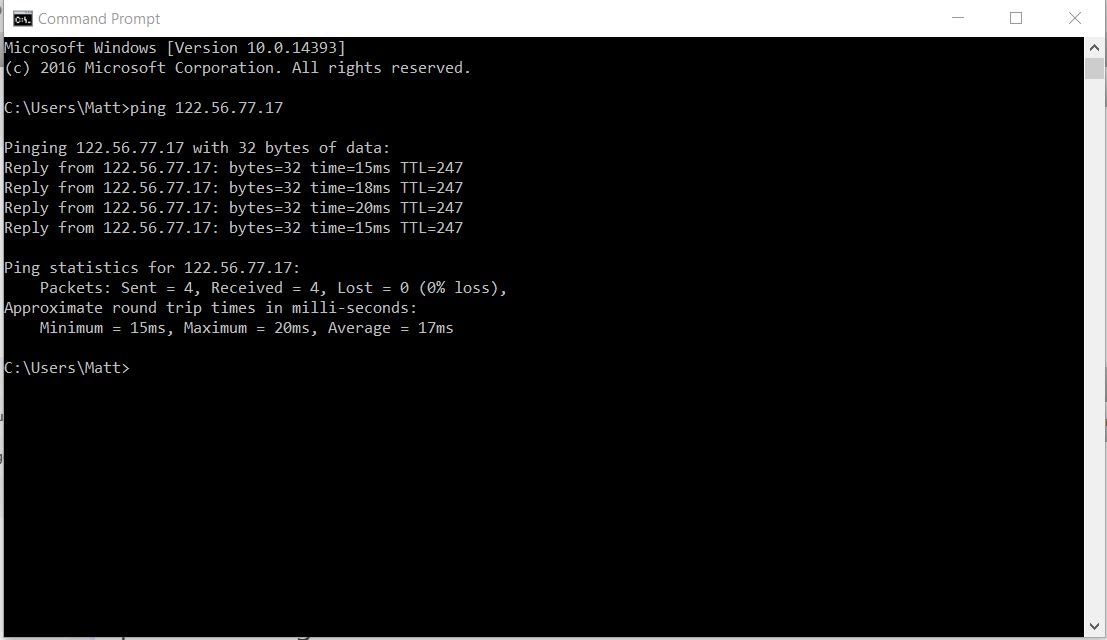
Figure 3: The results of a ping command
A normal reply looks like:
Reply from 122.56.77.17: bytes=32 time=15ms TTL=247
The ping command has received a response from the IP address, which took 15 milliseconds.
If the connection is down or the device you are pinging does not accept the ping, the ping command prints:
Request timed out.
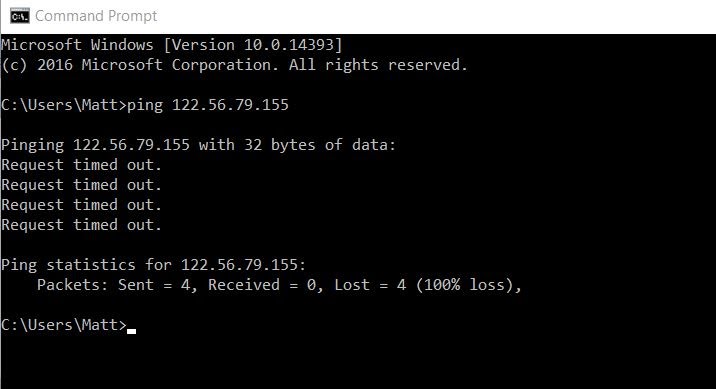
Figure 4: The results of a ping command to an address that cannot be reached
Pinging a Domain Name
You can also ping Domain Names (web site addresses) e.g. google.com, to see if the web site is up or to see if you have access to it from the school network.
Following the above instructions, enter into the Command Prompt:
ping google.com
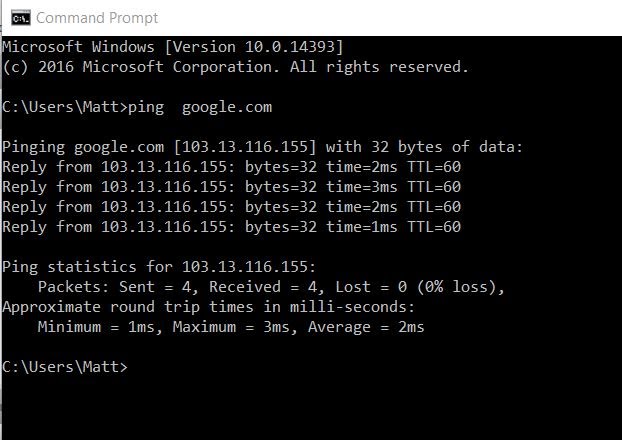
Figure 5: The results of pinging google.com
Pinging Continuously
If you add the -t flag (type a hyphen, then t, at the end of your ping command)
ping google.com -t
the ping command will continue to send ping messages indefinitely.
This enables you to see over a period of time if any ping messages are dropped (known as dropped packets) to the IP address or Domain Name you are checking.
To stop pinging, press Ctrl + C in the command prompt window.
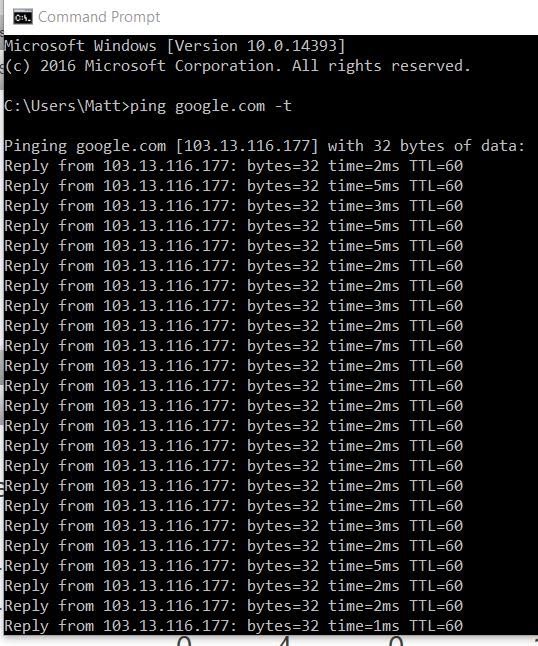
Figure 6: A continuous ping, with no dropped packets
References
About Network Utility. (2017, June 21). Retrieved July 27, 2017, from https://support.apple.com/en-us/HT202790
Apple Support Website